

Serving Dark Mode Based on System Preferences
Dark mode can be described as an interface presentation with a dark background colour and light-coloured text. This colour scheme is said to offer several advantages, including:
- Saving energy on displays using OLED and AMOLED technology.
- Reducing eye strain when reading in dark conditions.
- Reducing screen glare that interferes with vision.
In 2020, the dark mode trend has become a favourite across various user interfaces. Major operating systems have also joined in by offering a dark mode that can be activated via a ‘toggle’ in their settings. Windows 10 provides this setting under color settings (Settings -> Colors), while macOS offers it under general settings (Preferences -> General).
Not just operating systems — the dark mode trend has also spread to websites. Twitter, for example, offers three background options: default, dim, and lights out.
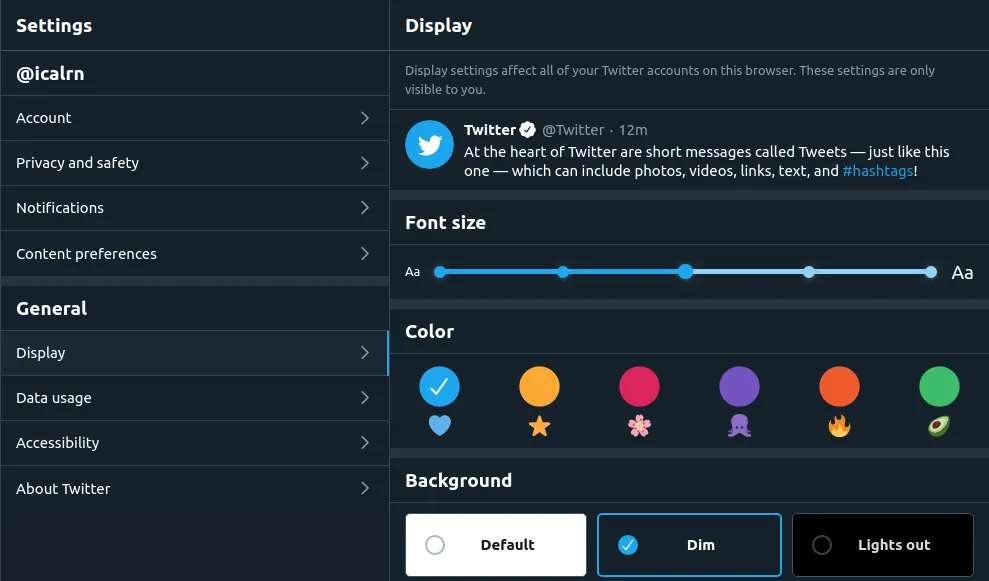
Display settings on Twitter
In addition to Twitter, Dev.to also offers a variety of display themes, several of which feature dark colours.
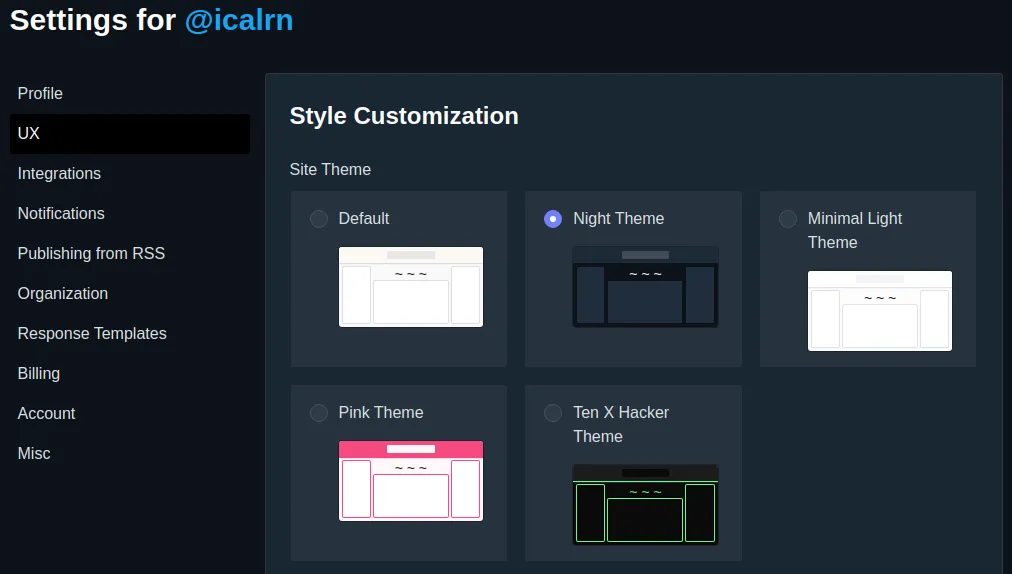
Display settings on Dev.to
So now the question is: since the operating system already provides a general dark mode setting, can we simply use that value without creating a new custom setting? The answer is yes — and we can do it with CSS alone.
Reading the System Dark Mode Setting with a CSS Media Query
CSS has supported Media Queries since the CSS2 specification via the @media at-rule. One of the latest additions in the Media Query Level 5 specification currently under development is the prefers-color-scheme descriptor. This descriptor detects the theme preference the user wants to see, based on the value set in the user’s system.
In its specification, prefers-color-scheme accepts one of two values: light or dark. If no value is set, the default value used is light.
@media (prefers-color-scheme: dark) {
  /* styles that will be applied if the user
  ** has enabled dark mode on their system
  */
}

@media (prefers-color-scheme: light) {
  /* styles that will be applied if the user
  ** has enabled light mode on their system,
  ** or has no preference
  */
}
One interface that uses this feature is none other than the Casper theme from Ghost, which is used on this blog. Try visiting this blog while toggling your system’s dark mode setting and see the result!
Testing the prefers-color-scheme Media Query Implementation
Google Chrome
Google Chrome has offered an option to emulate the prefers-color-scheme value in its Developer Tools since version 79, released in October 2019. This option can be found in the Rendering Options panel under the label “Emulate CSS media feature prefers-color-scheme”, as shown in the screenshot below.
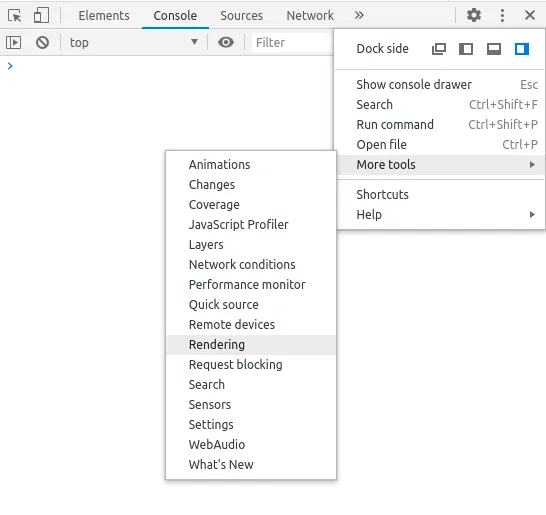
Rendering Options
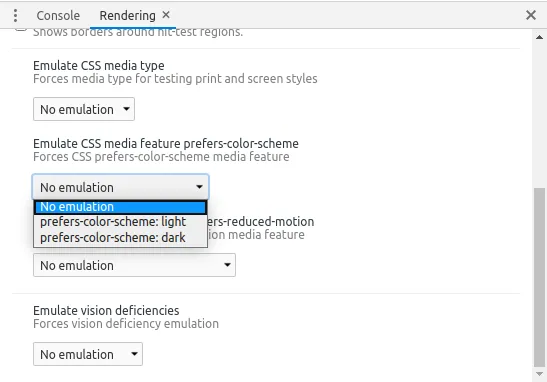
Prefers Color Scheme dropdown
Firefox
In Firefox — at least up to version 77 at the time of writing — testing this media query is more hidden compared to Chrome. First, you need to visit about:config to enter Firefox’s configuration page. Then, you need to search for the flag devtools.inspector.color-scheme-simulation.enabled and change it to true.
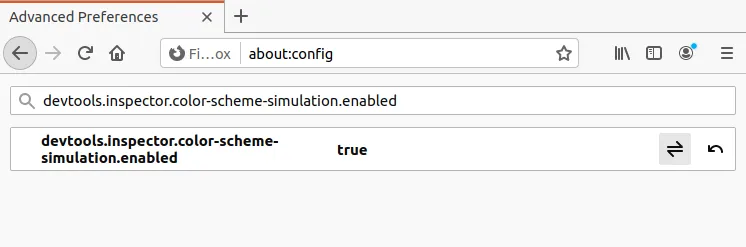
Firefox configuration
After that, you’ll be able to find the button to emulate the prefers-color-scheme value in the styles panel in Firefox’s Developer Tools.

Button to enable dark mode emulation
Browser Support
Below is browser support data, taken from Can I Use:
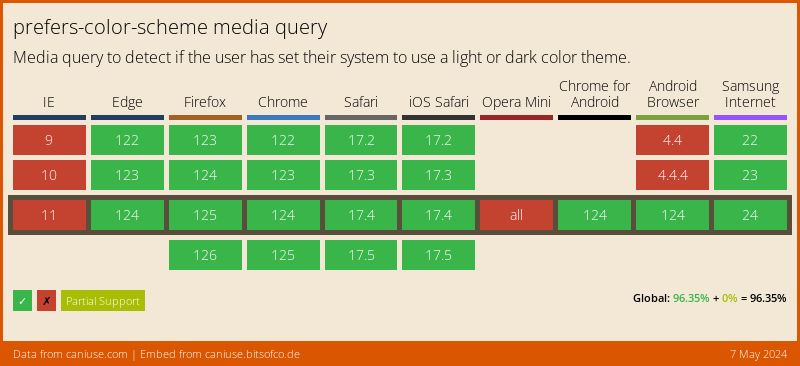
Caveat
As of the time of writing, the Media Query Level 5 specification is still in Working Draft status. This means there is still a possibility that this feature may change — in terms of both syntax and behaviour — while it has not yet moved to Recommendation status. You can monitor its status on the CSS Current Work page.